Try a change.
Choose to keep it.
Apply saves your draft; Revert discards it. Reset category changes only the current group. Closing with unsaved edits asks what you want to do. The window remembers its size and position.
The custom client
Avenor’s ClassicUO fork keeps the isometric world and adds a purpose-built interface. Clear combat feedback, searchable settings and your most important actions close at hand.
Your adventure, on screen
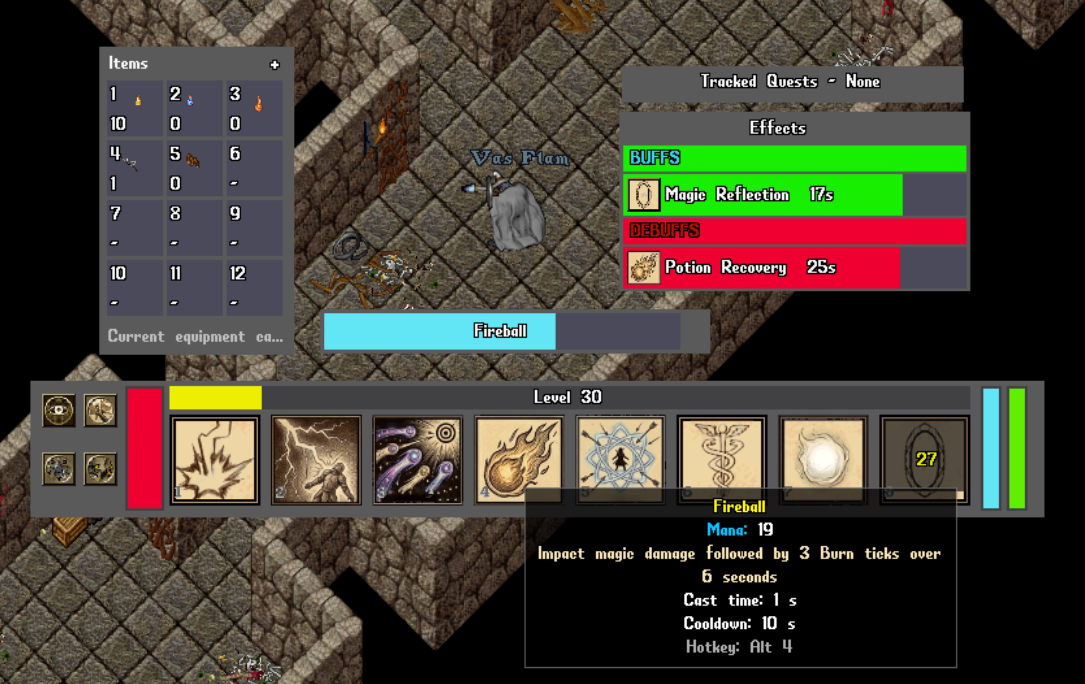
Eight ability slots keep your combat actions in reach. Named buffs and debuffs show duration, stacks and descriptive tooltips; the activity bar follows supported casts, gathering and travel.
The status window includes unspent stat and ability points, a poison indicator, and compact backpack/account gold values. Minimize it when you need more room for the world.
Hold Alt to move the fixed Avenor HUD panels. Their layout stays locked during combat. Ordinary windows retain their own movement preference.
Read the fight
Cast bars appear over visible creatures and other players. They show the spell name and remaining progress; your current target gets a wider bar. Gold means interruptible. Gray and [Locked] identify casts that cannot be stopped through the generic interrupt system.
The bars follow casts announced by the server. Use their timing to choose when to interrupt, reposition or prepare a defense.
Understand interruptions ↗Make it yours
Open Options for Avenor Settings: a resizable window with grouped categories, global search and sliders for volume, zoom and interface scale. Search labels, descriptions and useful aliases such as “fps”.
Apply saves your draft; Revert discards it. Reset category changes only the current group. Closing with unsaved edits asks what you want to do. The window remembers its size and position.
Search actions and bindings, capture keyboard or mouse inputs, and resolve conflicts with Replace, Swap or Cancel. Native macros support manually started sequences and desktop buttons. Typing in chat does not fire game shortcuts.
Export settings, keybinds and supported window layout, then preview an import before applying it. Item-kind counters can travel with the profile; exact item references and the contents of equipment sets remain local to your character.
Options → Items & Equipment
A separate Item Bar and named equipment sets sit alongside your eight ability slots. Every use or equipment change begins with your click or shortcut.
Add potions, bandages and food from the catalog, or target your own item. Stackable supplies are counted by their actual kind and relevant variants; a unique item points to that exact piece.
Running out leaves the shortcut in place. Alt-dragging its icon swaps shortcuts without moving or using the physical item.
Equip your preferred gear, capture it as a named set, then choose which positions to control. Keep leaves a position alone; Empty clears it; Exact uses the captured piece.
Before moving anything, the server checks ownership, requirements, hand and legendary conflicts, and room in your backpack. Missing gear stops the set with a reason. Sets never fetch replacements from the bank.
Valid sets change equipment in steps under normal game rules, including combat permissions. You can cancel; manual dragging, death or a new obstacle also stops the remaining steps. Completed moves stay in place. Confirm bind-on-equip items through ordinary equipping first.
A journal for the fight
The alternative journal has a dedicated Combat tab. Color-coded entries record damage, actual healing, misses, blocks, absorption, periodic effects, reflection, deaths and effect changes.
Your pets and summons are included. Unrelated fights nearby do not fill your log.
Illustrative combat journal
[14:32:01] Ogre hits you for 24 damage.
[14:32:03] You heal yourself for 18 health.
[14:32:05] Renewal expires.
Keeps the last 1,000 entries from the current login. Reopening the window preserves them; logging out clears them. The journal file setting can also save a separate combat log.
The world is better together
Find other players, ask a question and follow the latest from Avenor.
Your next chapter
Your next step,
in view.
Track up to five quests, read larger quest-giver markers and see region-entry banners. The world map shows matching ! and ? markers for quest NPCs currently known nearby, with Show mobiles enabled. It does not reveal every quest NPC in the world.
Quest markers make nearby quest-givers easier to spot in the world.
Let the item
speak for itself.
Open chat for typing, then Shift-click your item in the backpack or paperdoll. Linked names in the journal can be hovered for details or clicked for a movable preview. The link records the item when sent, so later changes do not rewrite an old message.